PagePress
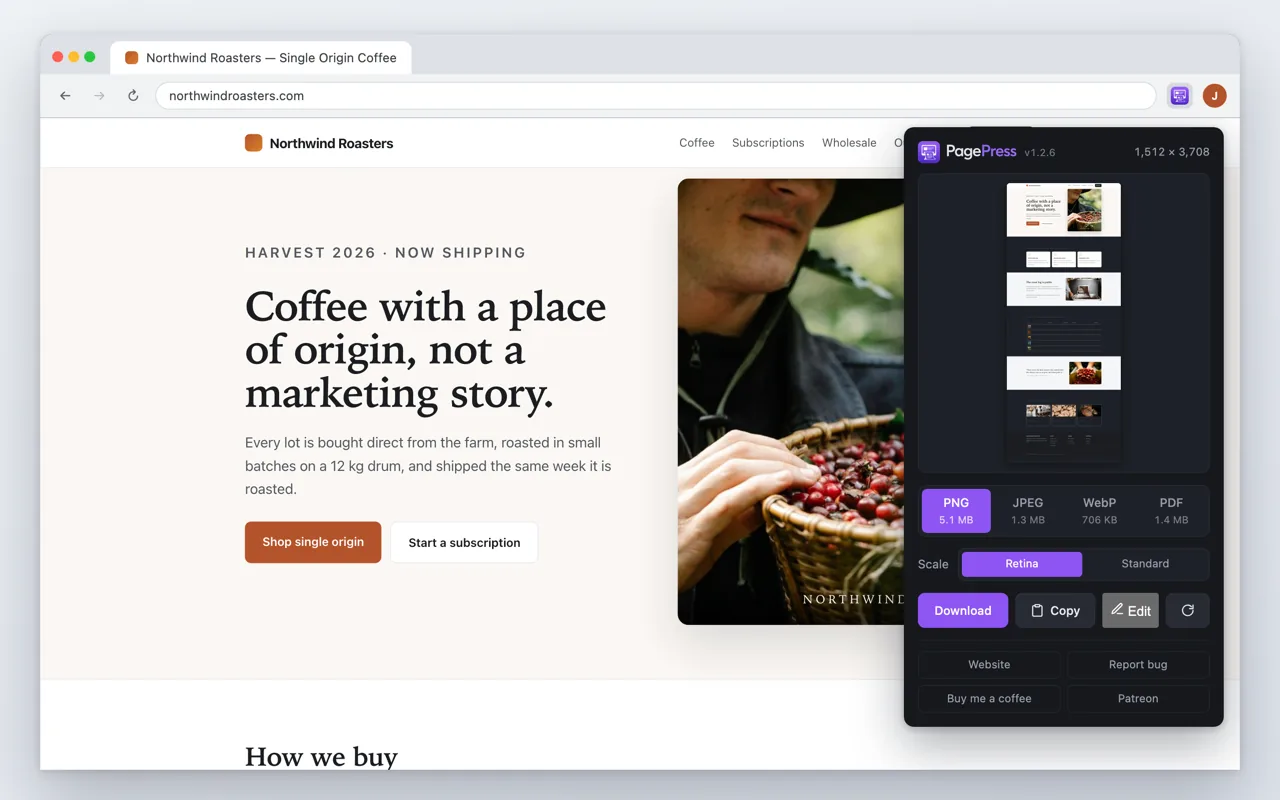
My full-page screenshot extension got delisted, and every replacement wanted to read every site I visit. So I built my own, and used it to learn the browser stores on something I could afford to get wrong.
- Runs on
- Chrome and Firefox
- Costs
- Nothing. No account.
- Asks for at install
- No host permission at all
- Built with
- JavaScript, as a browser extension
For years I used a full-page screenshot extension. Then it got delisted.
It wasn't a fancy one. It scrolled the page, took the whole thing, and handed me a PNG. I used it constantly, for site reviews, for bug reports, for saving a page the way it actually looked instead of the way the top 900 pixels of it looked.
I don't know the full story and I'm not going to pretend I do. What I know is that one day the icon was still in my toolbar and the extension behind it was dead.
So I went looking for a replacement, and found a category of software I did not want to install. Full-page capture is a genre where half the listings want permission to read every site you visit, forever, in exchange for a screenshot.
I put it off. For a couple of years, honestly. Every time I needed a full-page grab I'd do the stupid version: three screenshots, paste them into an image editor, line them up by eye.
What finally moved it off the list was a different project. I'm building another browser extension, a bigger one, and at some point it has to go through the Chrome Web Store and the Firefox add-on review. I'd never shipped anything through either, and that's a process I'd much rather learn on a tool where the stakes are low and the scope fits in my head.
So PagePress was two problems at once. Get my screenshot tool back, and walk the whole store pipeline end to end on something I could afford to get wrong.
The browser won't do it for you
Here's the first surprise. A browser will not hand an extension a picture of a whole page. There's no API for it. What there is, is captureVisibleTab, which photographs exactly what's on screen right now and nothing else.
So the whole trick is: measure the page, scroll a screen, shoot, scroll, shoot, and stitch the tiles together at the end. Then put the page back the way you found it.
The hard part is everything pinned to the window. A sticky header photographs itself into every single tile, so a five-screen page comes back with five copies of the nav bar running down it like a flip book. Same for cookie banners and chat widgets. Those get hidden for the duration and put back afterward.
Except the really big ones. Anything taller than 80% of the screen stays put, because at that size it's much more likely to be the app itself than a header, and hiding it would mean very carefully photographing a blank page.
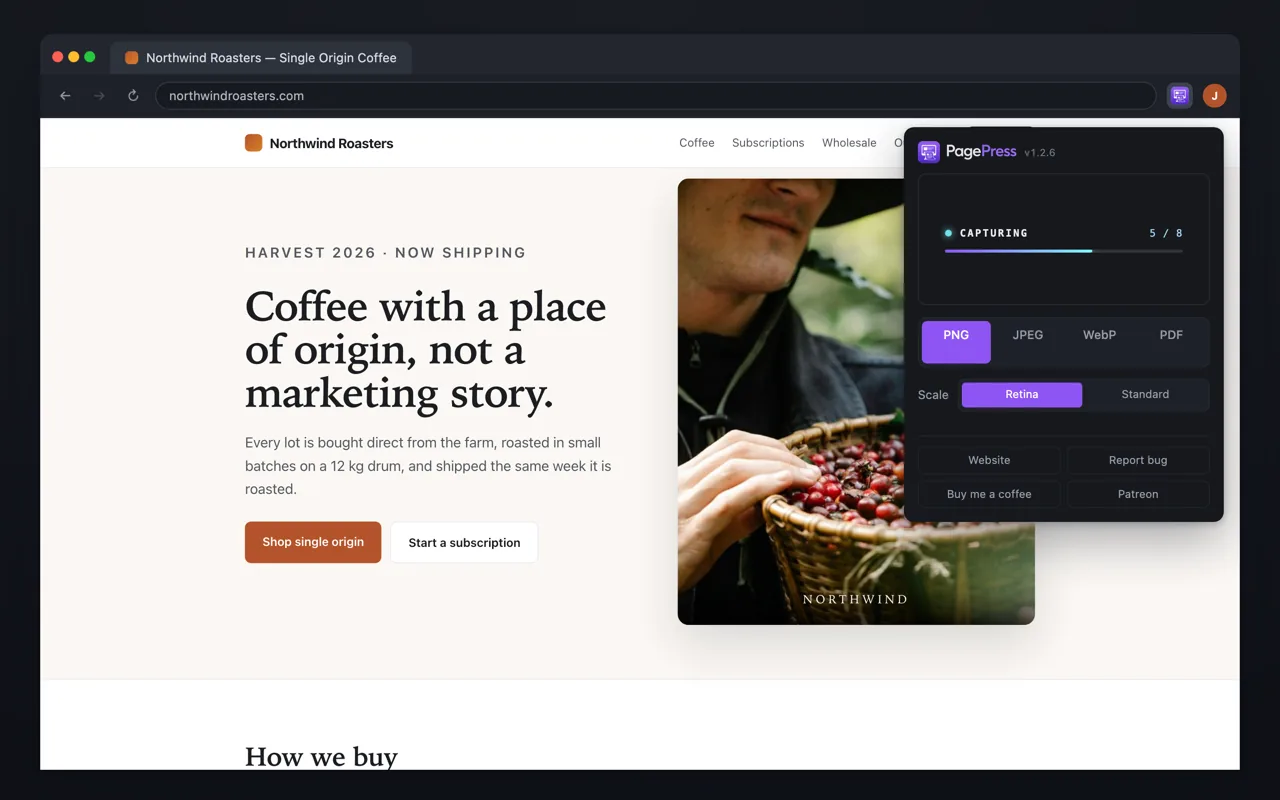
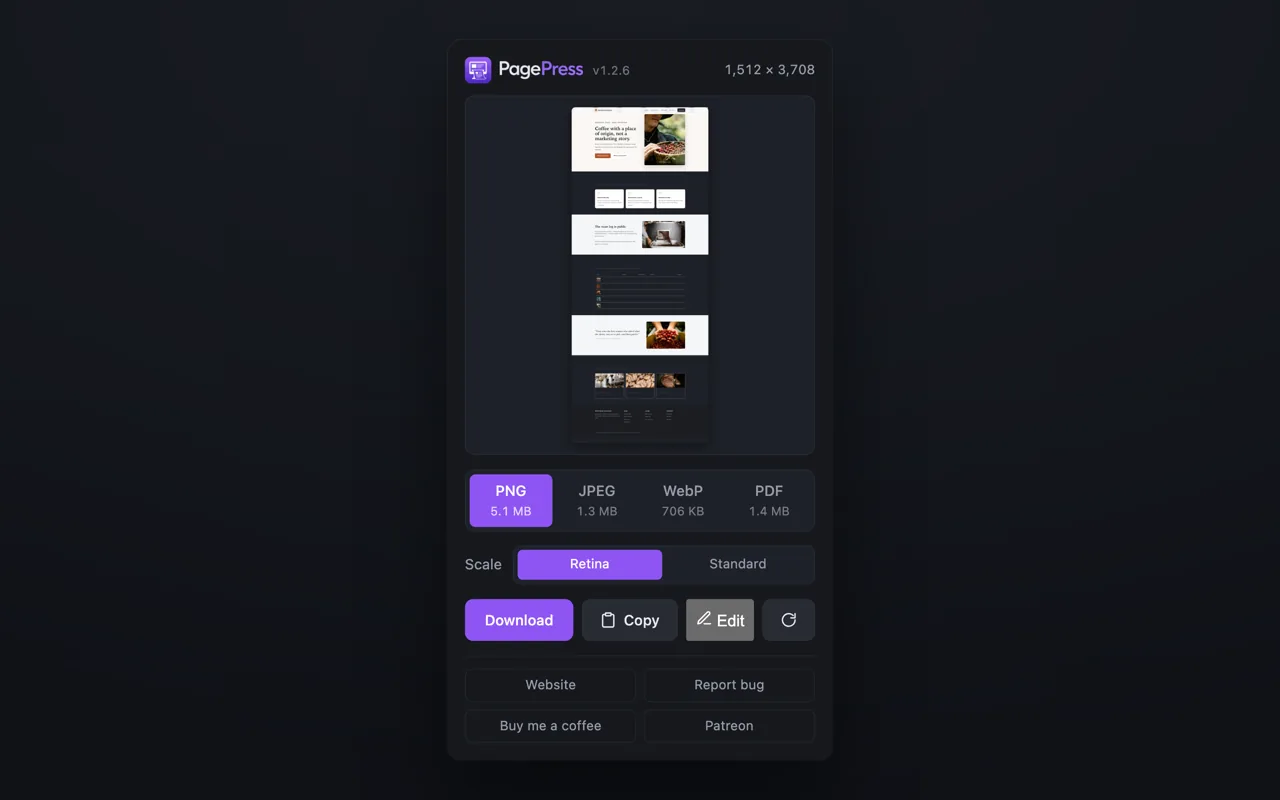
Chrome also only lets you take roughly two of those screenshots a second. There's no way around it, so the extension paces itself just under the limit. That's why a long page takes a few seconds instead of being instant, and it's why there's a progress readout at all.
Don't stand in your own shot
First version, I put the progress bar on the page. Obvious place for it. A little bar in the corner counting tiles as they come in.
It photographed itself.
Of course it did. The capture takes whatever's painted, and the bar was painted, so every tile came back with a progress bar burned into it. My first fix was to blink it off for each shot and back on after, which technically works and looks exactly as bad as it sounds.
The real fix was to stop putting it on the page. The popup is never captured, because the popup isn't part of the page. Move the readout in there and it can animate the whole time while the page just scrolls underneath.
The page is the subject of the photograph. You don't stand in your own shot.
That's the rule for the whole extension now. Nothing gets injected into the page just for the benefit of the person watching.
The feature I didn't plan to build
Here's the part I didn't see coming.
While I was building this, I was also doing what I always do: reviewing my own sites and telling an AI what to change. And the way you do that is miserable. You type things like "the third button in the hero, the ghost one next to the orange one, make it smaller." Then the agent edits the wrong button, because there are four buttons that could be described that way and you weren't as specific as you felt.
And I was sitting there with a tool that already knew how to point at things on a page. So I thought: what if instead of describing the element, I just click it?
That's how AI Markup came out of PagePress sideways. You turn it on and mark up the live page, not a picture of it. Select text and comment on it. Click an element and mark it for removal. Point, box, scribble, redact. Then hit Copy prompt and the whole review lands on your clipboard as markdown, ready to paste into Claude Code.
The byproduct turned out to be the feature I use most.
I almost built the editor twice
I spent the first stretch of that build convinced I was writing a second editor.
PagePress already had one. You capture a page, hit Edit, and get arrows, boxes, text, numbered badges, crop, rotate, redaction, undo, all drawn on top of the screenshot. Markup mode needed the same tools, except on a live web page instead of an image. Different surface, different everything. So I started building it again.
It took me longer than I'd like to admit to see what I was actually looking at.
The editor never really touches the image. It keeps every shape in its own coordinate space, and the only thing it ever asks the image for is its width and height. The image was never load bearing. It was just the thing that happened to be underneath.
So the page can be that space:
base = { width: scrollWidth, height: scrollHeight }   // the page, in CSS pixels
view = { scale: dpr, panX: -scrollX * dpr, ... }      // scrolling IS a pan
Scrolling is just panning. The shapes, the undo, the drawing code all came across unchanged, and the renderer needed one line changed to make the image optional.
I was asking "how do I build this again for a different surface," when the real question was "what does this thing actually depend on." The answer was two numbers.
Quote the words, not the code
The export is where this either works or is a toy.
The obvious thing is to export coordinates. There's a red arrow at 840, 210. That's useless to an agent, because nothing in a codebase is indexed by pixel.
The next obvious thing is the CSS selector. Better, but a lot of modern sites generate class names that appear nowhere in the source. Handing an agent .css-1x3n9zk and asking it to go find that is handing it nothing.
What actually survives the trip back to the code is the text. The words on the page are in the template, because somebody typed them there. So every mark leads with the exact words it's pointing at, uses the selector as backup, and brings enough surrounding context to tell the "Learn more" in the hero from the one in the footer.
One more thing in there that matters. Everything quoted off the page is treated as data, not instructions, and the prompt says so up front. A web page can say anything it likes, including a sentence addressed to the agent reading it. The only lines that carry intent are the ones the person doing the review typed.
The bug this site caused
For a while, typing a note into a mark would set off the keyboard shortcuts of the page underneath it.
Pages hang things off single keys all the time. Press / and search opens. They protect themselves the usual way, by ignoring keys that come from a text box. That's correct, and it can't work here. My note field lives inside its own sealed-off bit of the page, and by the time the keypress reaches the site's listener, the browser has made it look like it came from a plain div. So every page on earth concludes nobody's typing and fires its shortcut on every letter of your note.
I found it on this site. cyburdine.com replays its boot animation when you press d. So I sat there typing a note with the word "padding" in it and watched my own CRT boot sequence go off twice.
Now PagePress stops those keystrokes at its own edge, after its handlers have run and before the page's can. There's a test that holds that line both ways, because the page still has to get its shortcuts when you're not typing in the overlay.
The editor
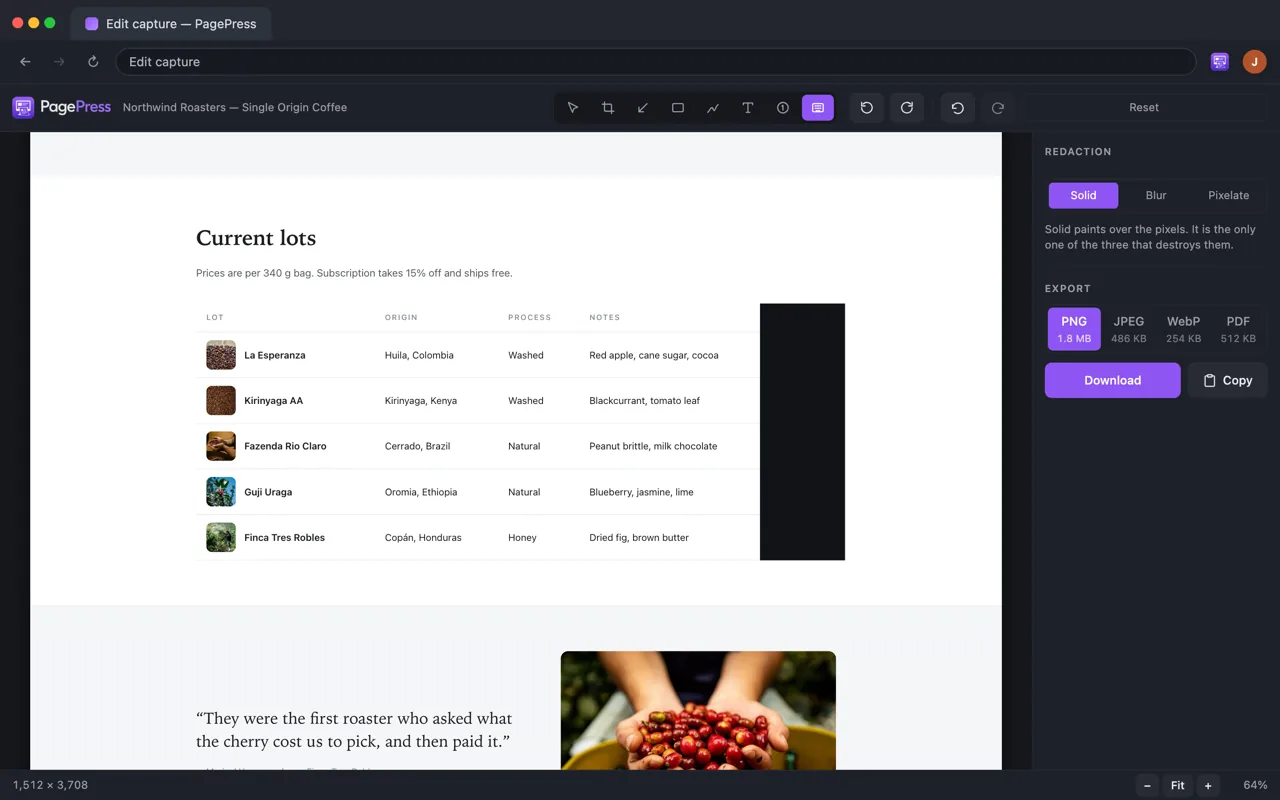
The editor is the other half of the tool. Arrows, boxes, freehand, text, crop, rotate, undo. The one I reach for constantly is the numbered step badges. Click, click, click, and the walkthrough numbers itself, and if you delete one out of the middle, the rest renumber.
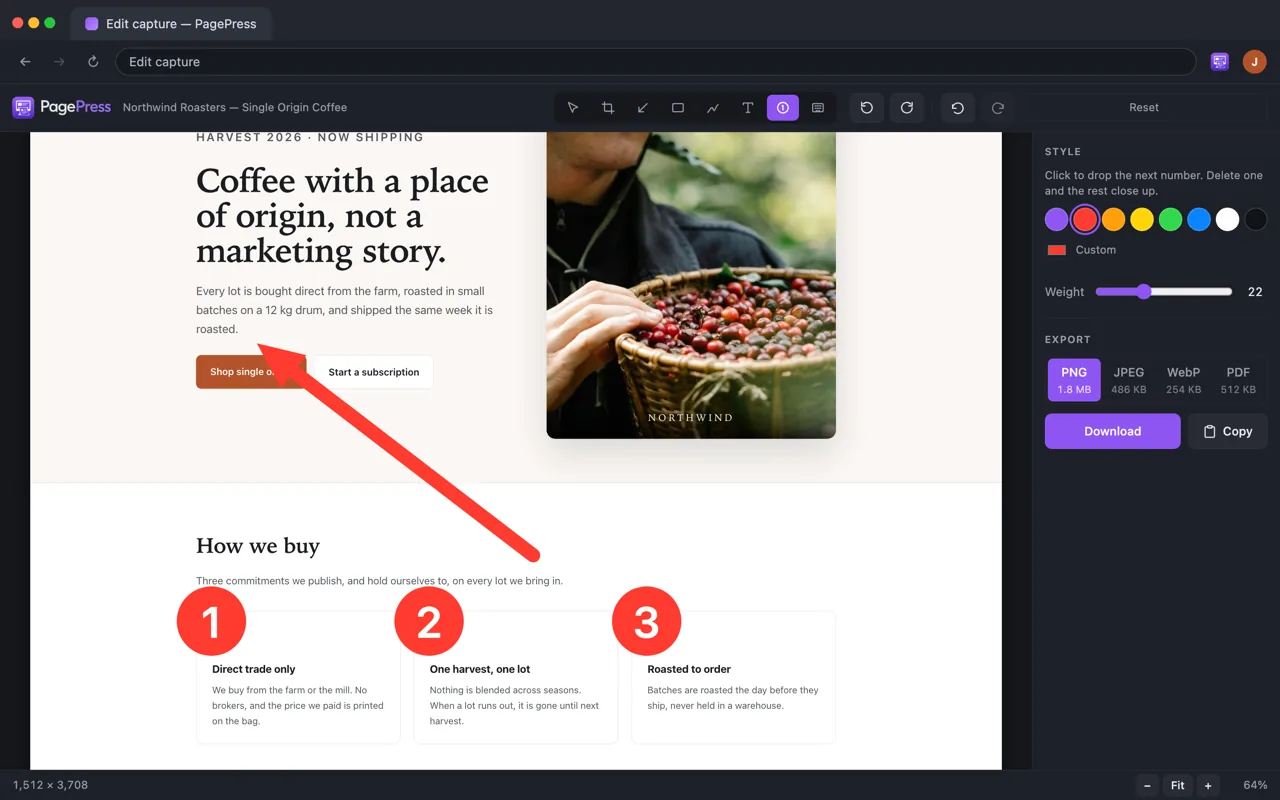
Redaction has three modes: solid, blur and pixelate. Only one of them is honest, and the panel says so on the label. Solid paints over the pixels and destroys them. Blur and pixelate are just transforms of the pixels that were there, which is a very different promise.
That's also where markup mode deliberately fibs to you, in the safe direction. Blur and pixelate need pixels to work on, and a live page doesn't have any. So in markup mode all three show up as solid. It hides at least as much as you asked for, never less.
What it asks for
This is the part I care about most, because it's the reason I went looking for a replacement in the first place.
PagePress asks for no host permission at install. None. It uses activeTab, which the browser grants one click at a time, so it can't read a page you didn't explicitly point it at. Markup mode doesn't add anything to that.
It also skips the debugger permission, which honestly is the easier way to build this. It gets you a whole-page capture in one call, no scrolling and no seams. The cost is a yellow "this browser is being debugged" banner, and an extension holding far more access than a screenshot tool has any business holding.
I'd rather stitch tiles.
Where it stops
There are a couple of walls I can't code around. A canvas can't go past 16,384 pixels on a side, so a really long page runs out, and when it does the popup tells you instead of quietly handing you half a page. And nobody's extension can capture browser pages like chrome:// or the Web Store. That's by design.
The oddest one is Firefox and WebP. Firefox can't encode WebP and quietly hands back a PNG instead. Rather than save you a PNG with a .webp name on it, the popup checks each format the first time and switches off any that comes back wrong. The day Firefox gets the codec, the button lights back up on its own.
The part I actually set out to learn
The store pipeline was the whole reason I picked this project, and I got what I came for.
What I didn't expect is how little of the work is the review itself. It's the machinery around it. Two manifests that have to agree on a version. Store screenshots that go stale the moment the interface changes. Zips that have to contain exactly the right files.
That last one bit me. The store zip and the folder I was testing from were built in the same run, so they always agreed with each other, and went stale together, silently, the moment I touched anything. For two commits I was testing something that wasn't what would be uploaded, and I didn't know. So now the build scripts can check themselves and name the first file that no longer matches.
All of it is one command now. It refuses to run on a messy tree, checks versions, runs the tests, rebuilds and verifies the zips, re-renders the store art, rebuilds the site, then commits, tags and asks once whether to deploy. Two things I still do by hand on purpose: pushing, and uploading to the two stores, which both want release notes typed in anyway.
What's next
The other extension, the one this was all practice for. It's going to be a much shorter walk.
For PagePress itself, the thing I keep circling is that AI Markup is a one-way door right now. You mark the page, copy the prompt, the agent makes the changes, and then you're on your own to check whether it did what you asked. Closing that loop, mark, apply, recapture, compare, is either the obvious next feature or a completely different product wearing this one's clothes.
I'm not deciding until I've used this one on a few more of my own sites.
 Get PagePress
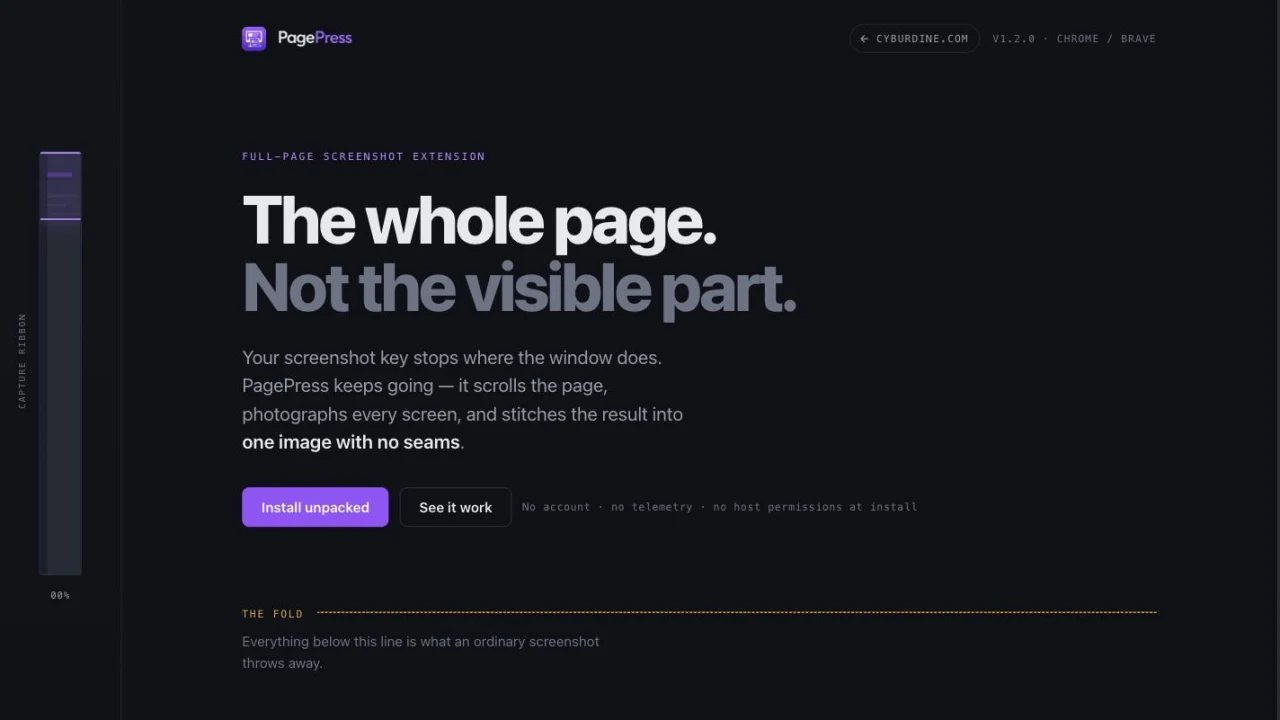
Free, no account, and it asks your browser for nothing until you click it.
pagepress.cyburdine.com
Get PagePress
Free, no account, and it asks your browser for nothing until you click it.
pagepress.cyburdine.com
Or install it straight from the Chrome Web Store or Firefox Add-ons.